

Let me ask you a question.
Have you ever generated a stunning UI component with an AI tool, pasted it into your Next.js app, and thought, “Wow, that was easy”?
We all have.
But here is the dirty little secret no one talks about.
That beautiful code? It is probably a complete disaster for accessibility.
AI models are trained to optimize for visual aesthetics. They want the output to look exactly like the design you prompted. They do not care if a visually impaired user can actually navigate your site using a screen reader.
And this is a massive problem.
If you deploy inaccessible code, you are alienating users, destroying your SEO rankings, and exposing yourself to compliance lawsuits.
Today, I am going to show you exactly how to fix this.
I am going to show you how to force AI models to write semantic, highly accessible web applications every single time.
Let’s get into it.
The “Clickable Div” Problem
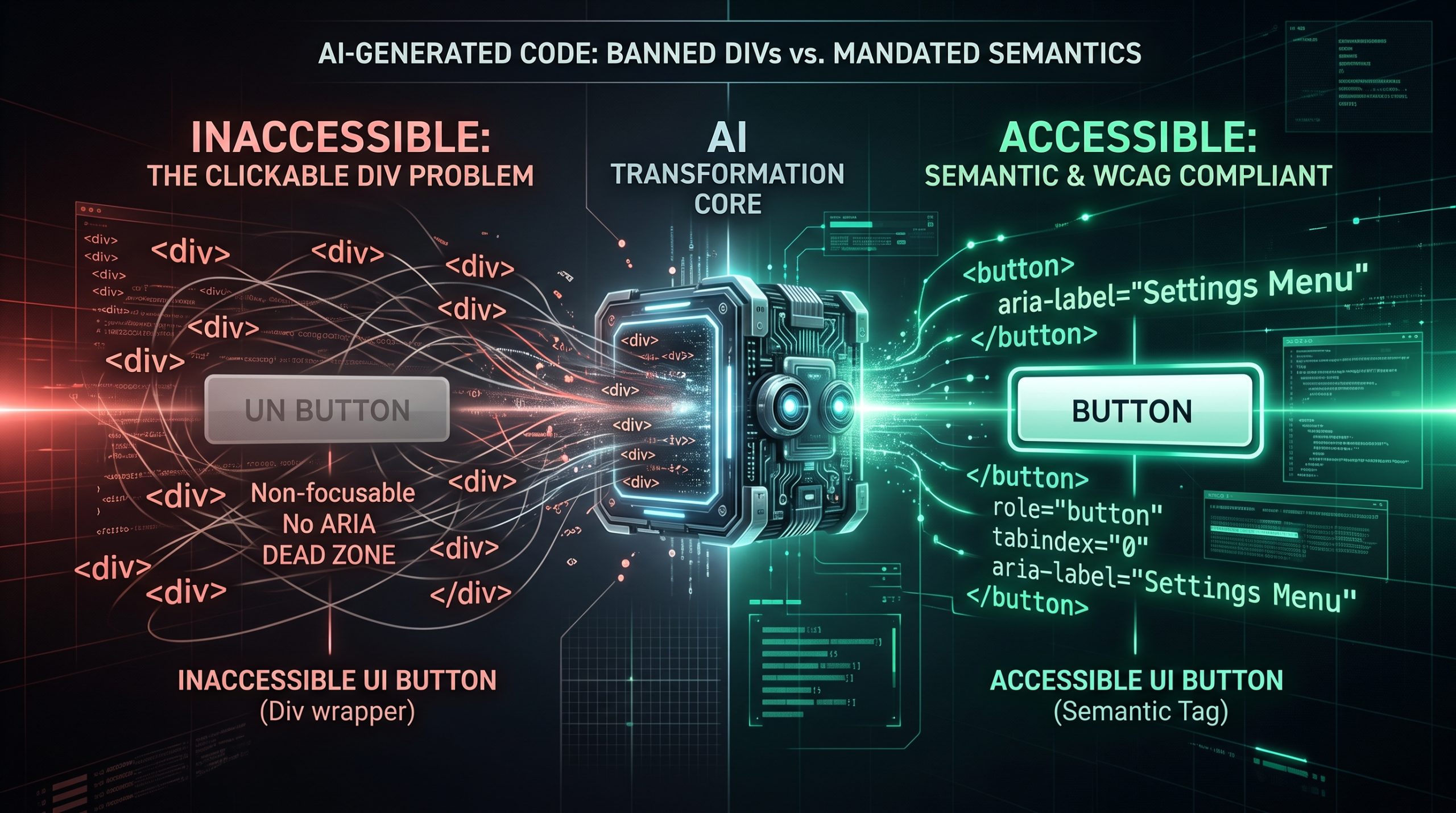
The absolute most common accessibility sin that AI models commit is something I call the “Clickable Div.”
Here is what happens.
You prompt an LLM to build a custom toggle switch or a stylish call-to-action button. The AI generates the HTML. It makes it look perfect using Tailwind CSS.
But instead of using a proper <button> tag, it wraps the whole thing in a generic <div> and slaps an onClick handler on it.
Visually, it works. Functionally? It is entirely broken.
Why?
Because a standard <div> is not naturally focusable. A user navigating your web application with a keyboard tab key will completely skip over that button. It simply does not exist to them. Screen readers will not announce it as an interactive element.
It is a dead zone.
You cannot trust the AI to know the difference. You have to explicitly ban the clickable div. You need to add a hard rule to your AI system prompt before it writes any code.
The Fix:
Add this exact line to your system instructions:
Semantic HTML Constraint: Never use
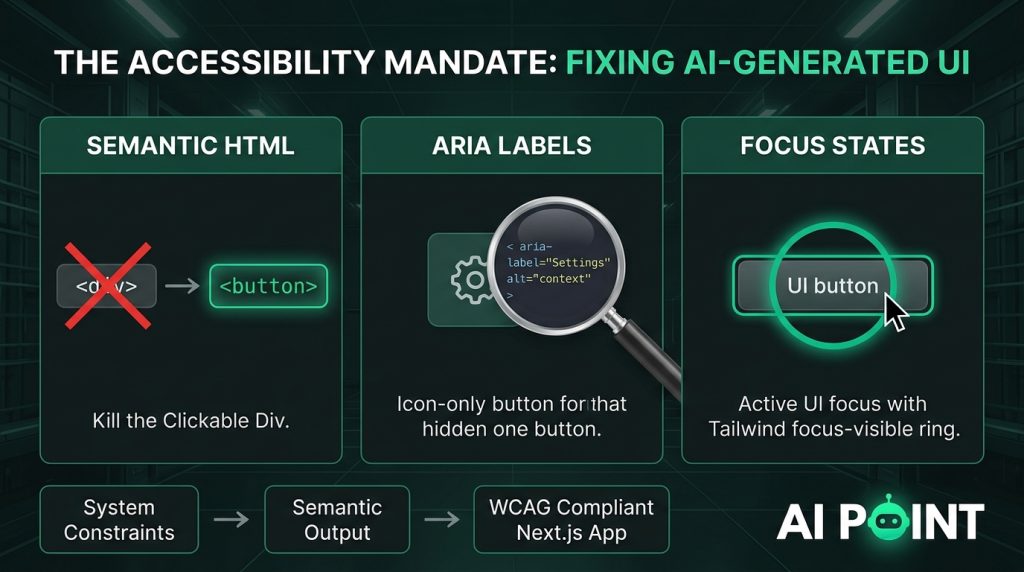
<div>or<span>tags for interactive elements. If an element triggers an action, you must use a<button>. If an element navigates to a new route, you must use an<a>tag. No exceptions.
When you enforce this rule, the AI stops cutting corners. It uses the correct semantic tags, instantly making your UI keyboard-friendly right out of the gate.
Enforcing ARIA Labels and Alt Text
Semantic tags are just the baseline.
To build a truly accessible web application, you have to provide rich context to assistive technologies.
Think about a modern social media dashboard. You probably have a sleek, icon-only button for the settings menu. Usually, it’s just a gear icon.
To a sighted user, a gear icon obviously means “Settings.”
But to a screen reader?
If there is no text inside that button, the screen reader just announces “Button” or worse, reads out the raw, unreadable SVG path coordinates. That is a terrible user experience.
You need ARIA (Accessible Rich Internet Applications) labels.
The problem is that AI is notoriously lazy about writing ARIA labels and image alt text. It will either leave them completely blank, or just write a useless placeholder like alt="image".
You have to engineer your prompts to demand descriptive text.
Here is the exact prompt structure you should use:
Accessibility Mandate: You must ensure strict WCAG compliance. Every single image tag must have a descriptive
altattribute explaining its context. Every icon-only button must include anaria-labelexplaining its exact function. Do not leave these blank or use generic placeholders.
By doing this, you are effectively turning your AI coding agent into an accessibility auditor.
It will automatically analyze the context of the UI and generate descriptive, meaningful labels for every single element, saving you hours of manual data entry.
Managing Keyboard Focus States
Let’s talk about focus states.
When a user tabs through your application using a keyboard, they need to know exactly which element is currently active. Browsers have default focus rings to handle this.
But let’s be honest: default browser focus rings are usually ugly. They clash with your brand aesthetics.
So, what do junior developers do? They add outline: none in their CSS and completely remove the focus state.
This is a massive accessibility violation.
AI models will often do the exact same thing if they are trying to match a specific minimalist design or wireframe.
Because you are likely using Tailwind CSS to style your React components, the fix here is incredibly simple, but you have to force the AI to remember it.
You need to instruct the AI to utilize Tailwind’s focus-visible utility class.
Why focus-visible and not just a standard focus class?
Because focus-visible only shows the ring when the user is navigating via keyboard. It keeps your design clean and minimalist for mouse users while remaining perfectly accessible for keyboard users.
Add this specific rule to your prompting workflow:
Focus State Constraint: All interactive elements must have clear keyboard focus states. Use Tailwind CSS
focus-visibleutility classes (e.g.,focus-visible:ring-2 focus-visible:ring-[#00A86B] focus-visible:outline-none) to highlight active elements.
This ensures every button, link, and form input is clearly highlighted, keeping your application fully accessible and visually consistent with your brand colors.
Shipping Production-Ready Code
If you are just building weekend prototypes, you might think you can ignore accessibility.
But if you are building real products, SaaS platforms, or client sites, accessibility is non-negotiable.
It is not an “extra feature.” It is a fundamental requirement of professional web development. And when you are using AI to write your frontend code, the responsibility still falls 100% on you to ensure that code is fully compliant.
The beauty of this process is that once you bake these rules into your system prompts, you never have to think about them again.
The AI will automatically generate accessible markup, saving you hours of manual auditing and tedious refactoring before your launch day.
Accessibility cannot be an afterthought; it must be a mandated constraint at every stage of AI-assisted frontend development to ensure you are shipping inclusive products.
When you master this, you elevate yourself from someone who just “uses AI” to a true professional engineer orchestrating intelligent tools.
Conclusion
We are moving incredibly fast in this new era of web development.
It is tempting to take the AI’s first output, marvel at how good it looks on your monitor, and immediately push it to production.
Don’t fall into that trap.
Take the extra five minutes to set up your system constraints. Enforce semantic HTML. Demand ARIA labels. Require visible focus states.
Your codebase will be infinitely better, your SEO will improve, and your users will thank you.
Now, I have a quick question for you to answer in the comments below.
What is the most frustrating accessibility error you constantly catch AI models making when generating UI components?
